
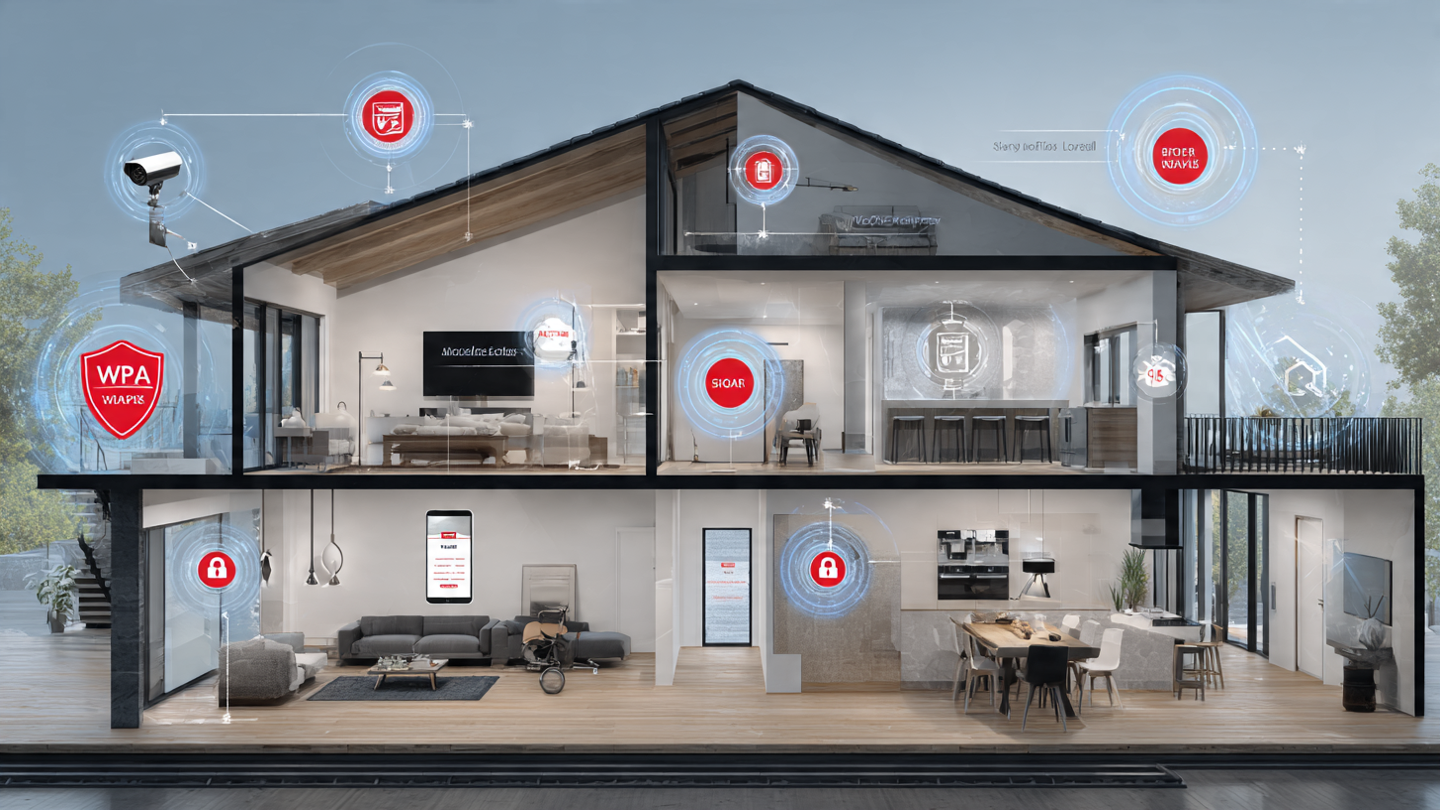

Smart devices have changed the way people protect and manage their homes. Video doorbells show who is outside, smart locks provide keyless entry, and connected security cameras allow homeowners to check their property from almost anywhere.
However, every device connected to the internet can introduce a new security risk.
Weak passwords, outdated software, unsafe router settings, excessive app permissions, and poorly configured cameras can make a smart home vulnerable. In some cases, an attacker may gain access to private recordings, control connected devices, or collect personal information.
The good news is that most smart home risks can be reduced with a few practical steps.
This guide explains the most common smart home security problems and fixes so you can protect your devices, personal information, and household without needing advanced technical knowledge.
Weak Passwords
Weak or reused passwords are among the biggest smart home security problems.
Many smart devices are controlled through mobile apps and online accounts. These accounts may provide access to security cameras, alarms, smart locks, garage doors, lighting systems, and other connected equipment.
When the same password is used across several websites, a security breach involving one account may place every other account at risk.
Default passwords are equally dangerous. Some devices are shipped with simple login details that are easy to find online. If these credentials are not changed, an unauthorized person may be able to access the device.
The fix: Create a unique password for every smart home account.
Use a long password or passphrase containing a combination of words, numbers, and symbols. Avoid using names, birthdays, addresses, pet names, or other information that someone could easily guess.
A trusted password manager can create and store strong passwords for you. This makes it easier to avoid password reuse without remembering dozens of complicated login details.
You should also change the administrator password for your router and smart home hub. These passwords may be separate from the passwords used inside mobile apps.
Missing Two-Factor Authentication
A strong password provides useful protection, but it may not be enough by itself.
Passwords can be stolen through phishing emails, malware, data breaches, or compromised devices. If an attacker obtains your login details, they may be able to access your smart home account.
Two-factor authentication adds another layer of security.
It requires a second form of verification after the password is entered. This may be a code from an authentication app, a security key, a fingerprint, or a text message.
The fix: Enable two-factor authentication on every smart home account that supports it.
Start with the accounts connected to your cameras, smart locks, alarm system, garage door, and central smart home hub.
You should also enable two-factor authentication on the email address linked to your smart devices. Password reset links and account security alerts are usually sent by email, making your inbox an important part of your smart home security.
Authentication apps and physical security keys generally provide stronger protection than text messages. However, text-based verification is still better than relying only on a password.
Outdated Firmware
Smart home devices run on built-in software known as firmware.
Manufacturers release firmware updates to improve performance, add features, and repair security weaknesses. Devices that are not updated may remain vulnerable to problems that have already been discovered and fixed.
Some smart devices update automatically, while others require the owner to approve updates manually. Older products may stop receiving security support completely.
An unsupported device can become a long-term risk because newly discovered weaknesses may never be repaired.
The fix: Turn on automatic updates wherever possible.
Check your smart device apps regularly for pending firmware updates. You should also update the mobile phone or tablet used to control your smart home system.
Before buying a new smart device, review the manufacturer’s update policy. Choose companies that clearly explain how long they will provide security patches and software support.
If a device has reached the end of its support period, consider replacing it. This is especially important for security cameras, smart locks, routers, alarms, and devices that collect private information.
Insecure Wi-Fi Routers
The router is one of the most important parts of a secure smart home.
Every internet-connected device communicates through the home network. If the router is poorly protected, an attacker may be able to monitor traffic, change network settings, or target connected devices.
Many homeowners change their Wi-Fi password but forget to change the separate router administrator password.
The Wi-Fi password allows devices to connect to the network. The administrator password controls the router itself.
Factory-set administrator credentials may be easy to guess or available online.
The fix: Change both the Wi-Fi password and the router administrator password.
Use WPA3 security if your router and devices support it. WPA2 is an acceptable alternative for older equipment. Avoid outdated security standards such as WEP.
Keep the router firmware updated and make sure its firewall is active.
You should also change the default network name. Avoid using a Wi-Fi name that reveals your surname, address, apartment number, or router model.
Replace an old router if it no longer receives security updates or cannot support modern wireless encryption.
One Network for Everything
Many homes connect every device to one Wi-Fi network.
This may include work computers, smartphones, smart televisions, security cameras, speakers, plugs, doorbells, gaming systems, and visitors’ devices.
Although this setup is convenient, it allows less secure smart products to share a network with devices that contain valuable personal or business information.
A low-cost connected plug does not need access to your laptop, printer, or network storage system.
The fix: Create a separate network for smart home devices.
Many modern routers provide a guest network or dedicated Internet of Things network. Use it for smart cameras, speakers, televisions, plugs, appliances, doorbells, and other connected equipment.
Keep computers, phones, work devices, and personal storage systems on the main network.
Visitors should also use a guest network rather than receiving the password for your primary Wi-Fi connection.
Check whether your router’s guest network provides actual device isolation. Some routers create a separate network name but still allow devices to communicate with equipment on the main network.
After separating your devices, test the entire smart home system. Some speakers, hubs, and casting devices require local network communication to function properly.
Unnecessary Remote Access
Remote access allows homeowners to control devices while away from home.
It can be useful for checking security cameras, locking doors, adjusting thermostats, or opening a garage. However, remote access also increases the number of ways an attacker may attempt to reach a device.
Some routers and smart products enable remote management automatically. Other features, such as Universal Plug and Play, may create network connections without clearly explaining what has been opened.
The fix: Disable remote access when it is not needed.
If you only use a smart device while connected to your home Wi-Fi, there may be no reason to allow internet-based control.
Turn off router remote management, Wi-Fi Protected Setup, and Universal Plug and Play unless you specifically need them.
Avoid opening router ports manually for cameras, hubs, locks, or video recorders. Port forwarding can expose devices directly to the internet and may bypass useful security protections.
When remote access is necessary, use the manufacturer’s official app, enable two-factor authentication, and activate login notifications.
Poor Camera Placement
Smart cameras can improve home security, but they can also create privacy problems.
Indoor cameras may record family members, children, visitors, private conversations, computer screens, or personal routines. Outdoor cameras may capture a neighbor’s property or private areas unnecessarily.
Poor placement can also reduce security. A camera positioned too high, facing direct sunlight, or aimed at a busy road may produce unclear recordings and constant false alerts.
The fix: Place cameras only where they provide a clear security benefit.
Useful locations include entry doors, driveways, garages, side gates, and other common access points.
Avoid placing cameras in bedrooms, bathrooms, changing areas, or private household spaces.
Position outdoor cameras so they focus mainly on your property. Adjust the viewing angle to avoid recording neighboring windows, gardens, and private areas.
Use privacy zones when the camera software supports them. These settings can block selected areas from being recorded.
For indoor cameras, consider models with physical privacy shutters. A physical cover provides clear confirmation that the camera lens is blocked.
Excessive Camera Storage
Many smart cameras store video recordings in the cloud.
Cloud storage can be convenient, but keeping footage for an unlimited period increases privacy risks. Older recordings may contain personal conversations, family routines, visitor activity, or information about when the house is empty.
Shared camera links can also remain active longer than expected.
The fix: Keep recordings only as long as necessary.
Review the camera’s storage settings and choose a practical retention period. Homeowners often do not need to keep routine footage for several months.
Delete old recordings that no longer serve a security purpose.
Review all shared users and video links. Remove access for former residents, contractors, guests, or anyone who no longer needs to view the footage.
Enable encryption, access alerts, and viewing history when these features are available.
Too Many App Permissions
Smart home apps often request access to location data, microphones, cameras, contacts, Bluetooth, notifications, and the local network.
Some permissions are required for setup or normal operation. Others may be optional or needed only temporarily.
Leaving every permission enabled can allow an app to collect more information than necessary.
The fix: Review app permissions regularly.
Open the privacy settings on your phone and check each smart home application. Remove access that is not essential.
A lighting app may need permission to connect to the local network, but it may not need access to your contacts or microphone.
Location access should be limited when possible. Some automation features require location information to detect when residents arrive or leave, but precise location access may not be necessary at all times.
Uninstall apps connected to devices you no longer own or use.
Unsecured Voice Assistants
Voice assistants can control lights, televisions, locks, appliances, cameras, and shopping accounts.
They can also store voice recordings and connect to calendars, contacts, messages, and other personal services.
A voice assistant may occasionally respond to a television, visitor, child, or similar-sounding phrase. This can lead to accidental commands.
The fix: Limit what the voice assistant is allowed to control.
Disable voice purchasing unless it is genuinely useful. Where available, require a spoken PIN or confirmation before completing purchases.
Avoid allowing voice commands to unlock exterior doors or disable security systems unless the system requires additional verification.
Review stored voice recordings and delete old data when appropriate.
You should also remove unused skills, integrations, and linked accounts. Every connection creates another path through which information or control may be shared.
Forgotten User Access
Smart home access often accumulates over time.
Former housemates, relatives, cleaners, tenants, contractors, and guests may continue to have access after they no longer need it.
Old phones and tablets may also remain signed in.
Shared administrator passwords make this problem more difficult because there is no clear record of who accessed the system.
The fix: Give each person an individual account whenever possible.
Use temporary access codes for cleaners, guests, delivery workers, or service providers. Limit those codes to specific days and times.
Do not give full administrator access to someone who only needs to unlock one door.
Review the user list every few months. Remove accounts belonging to people who have moved out or no longer require access.
After a household change, update lock codes, alarm PINs, garage access, shared passwords, and trusted devices.
Unknown Connected Devices
Most people do not know exactly how many devices are connected to their home network.
Old plugs, unused cameras, previous hubs, televisions, appliances, and children’s devices may remain connected for years.
An unknown device is difficult to update and monitor. It may also be a sign that someone has joined the network without permission.
The fix: Review the router’s connected-device list.
Router settings may label this section as connected devices, network clients, wireless clients, or DHCP clients.
Create a simple device inventory containing the product name, room, manufacturer, model, app, owner, and expected support period.
Do not panic when you see an unfamiliar technical name. Some devices appear under the name of the internal component manufacturer rather than the brand printed on the product.
Temporarily disconnect an unknown device to identify it. If a speaker, television, camera, or appliance stops working, you will know which product was using the connection.
Remove and reset devices that are no longer needed.
Unsafe Second-Hand Devices
Used smart devices may still contain information from their previous owner.
A second-hand camera, lock, speaker, or hub may remain linked to another person’s account. Likewise, a device you sell may retain your Wi-Fi details, recordings, settings, or personal information.
The fix: Factory-reset every second-hand smart device.
When buying a used product, confirm that the previous owner has removed it from their online account.
Update the firmware before connecting the device to your main network. Change every available password and review all user accounts.
Before selling or donating your own device, delete stored information, remove it from your account, revoke shared access, and complete a factory reset.
Confirm that the device no longer appears inside your smart home app.
Battery and Power Failures
Cybersecurity is not the only concern in a smart home.
A security system can fail because of a dead battery, power outage, weak wireless signal, or unavailable cloud service.
A smart lock without a working backup method can leave residents locked out. A camera may stop recording when the Wi-Fi goes down. An alarm may be unable to send notifications during an internet outage.
The fix: Test backup systems before an emergency occurs.
Check how each smart lock opens when its battery fails. Keep physical keys in a secure and accessible location.
Replace device batteries on a regular schedule rather than waiting for them to die.
Consider using an uninterruptible power supply for your router, security hub, and essential cameras.
Ask your monitoring provider whether the alarm system includes cellular and battery backup.
Test what happens when the internet is disconnected. Important alarms should still produce local warnings even if cloud services are unavailable.
Missed Security Alerts
Smart security systems can produce many notifications.
Motion alerts may be triggered by pets, vehicles, trees, shadows, insects, weather, and passing pedestrians. When users receive too many unnecessary alerts, they may begin ignoring them.
Poorly adjusted settings can also cause important activity to be missed.
The fix: Customize alerts for each device and location.
Adjust motion zones so cameras focus on entrances, paths, gates, and other important areas.
Change sensitivity gradually and test the results. Avoid making several changes at once because it becomes difficult to identify which setting improved or reduced performance.
Use different notification levels for different events.
A person passing an outdoor camera may require a normal notification. A smoke alarm, forced door, broken window, or unexpected nighttime entry should produce a more urgent alert.
Test notifications while away from home to confirm they reach the correct phone.
Warning Signs of a Breach
Smart home security problems are not always obvious.
Possible warning signs include a camera moving unexpectedly, unfamiliar users, changed settings, unexplained login alerts, unknown devices on the network, disabled notifications, or unusual voice assistant activity.
Repeated password reset emails and account lockouts may also suggest that someone is attempting to gain access.
The fix: Act quickly when something appears suspicious.
Disconnect the affected device from the network when it is safe to do so.
Change the account password using a trusted phone or computer. Enable two-factor authentication and sign out all other sessions.
Remove unknown users and secure the email account connected to the device.
Review activity logs and save screenshots of suspicious access, login locations, timestamps, and account changes.
Update the device, app, router, and managing phone. Perform a factory reset if you believe someone has taken control of the product.
For smart locks, alarms, smoke detectors, and monitored security systems, contact the manufacturer or monitoring provider immediately.
Regular Maintenance
Smart home security is not a one-time task.
Devices, applications, accounts, and household access requirements change over time. A system that was secure when installed may become vulnerable if it is ignored for several years.
The fix: Create a simple maintenance routine.
Once a month, check low-battery warnings, failed devices, unusual alerts, and unfamiliar users.
Every three months, review firmware updates, app permissions, camera storage, connected devices, remote access, and shared accounts.
Once a year, confirm that important devices still receive manufacturer support.
Replace unsupported routers, cameras, locks, and hubs. Remove products that are no longer needed.
Regular checks are usually more effective than waiting for a security incident to reveal a forgotten weakness.
Smart Home Security Checklist
Use this checklist to improve the security of your connected home:
- Create a unique password for every smart home account.
- Enable two-factor authentication.
- Protect the associated email account.
- Install firmware and app updates.
- Replace unsupported devices.
- Change the router administrator password.
- Use WPA3 or WPA2 wireless security.
- Create a separate network for smart devices.
- Disable unnecessary remote access.
- Review camera positioning and storage.
- Limit application permissions.
- Remove former users and old devices.
- Keep physical keys and backup access methods.
- Test batteries, alarms, and internet outage behavior.
- Review security settings regularly.
Final Thoughts
The most common smart home security problems usually begin with simple oversights.
A reused password, outdated router, forgotten guest account, unsupported camera, or unnecessary remote access feature may create an avoidable weakness.
Fortunately, improving smart home security does not require complicated equipment.
Use unique passwords, enable two-factor authentication, install updates, secure the router, separate connected devices, review permissions, and remove access that is no longer needed.
A secure smart home should protect both the property and the people living inside it. Regular maintenance and careful settings can make connected devices safer, more reliable, and easier to trust.
Frequently Asked Questions
What is the biggest smart home security risk?
Weak account security is one of the biggest risks. A stolen or reused password may provide access to cameras, locks, alarms, and other connected devices. Unique passwords and two-factor authentication provide strong protection.
Should smart home devices be placed on a separate Wi-Fi network?
Yes. A separate IoT or guest network can prevent smart devices from directly communicating with personal computers and storage systems. Make sure the network provides proper device isolation.
How often should smart home devices be updated?
Enable automatic updates whenever possible. Check manually every few months and install important security updates promptly. Replace devices that no longer receive manufacturer support.
Can someone hack a smart security camera?
Any internet-connected camera may be targeted, but unauthorized access becomes much harder when you use a unique password, two-factor authentication, updated firmware, secure Wi-Fi, restricted sharing, and login alerts.
What should I do before selling a smart home device?
Remove the device from your account, delete stored information, revoke shared access, and perform a factory reset. Confirm that it no longer contains your Wi-Fi credentials, recordings, or personal settings.
Read more: eSIM Technology Explained for Beginners: Complete Guide