
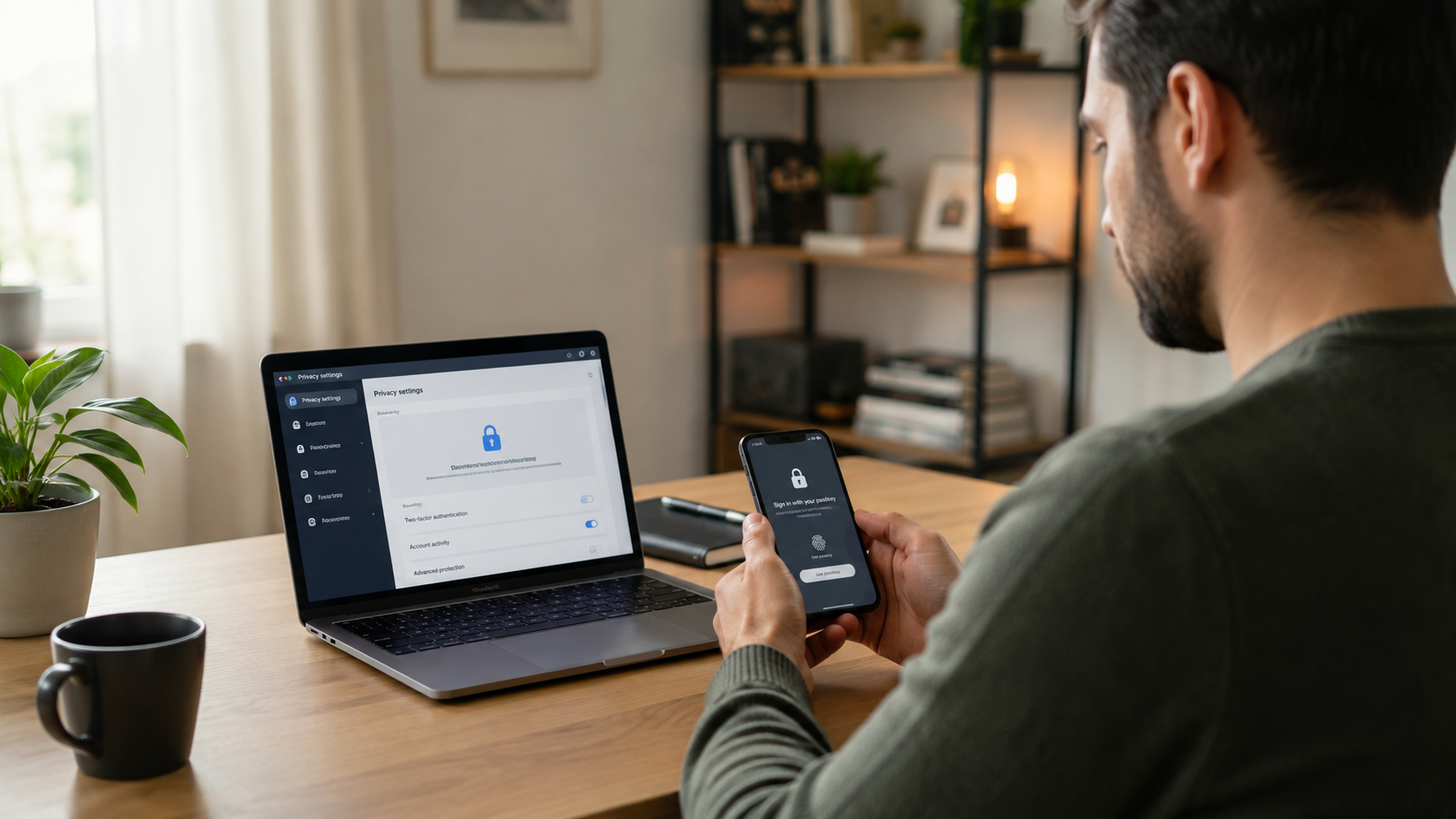

Your personal information is scattered across email accounts, phones, shopping sites, social platforms, cloud storage, and apps you may have forgotten installing. Protecting it can feel like an endless technical project. It doesn’t have to be.
The best practices for digital privacy are mostly about reducing unnecessary exposure, securing the accounts that matter most, and making deliberate choices about what you share. You don’t need perfect anonymity or a collection of specialist tools. You need a realistic routine that fits your risks.
This guide explains which actions have the greatest impact, what popular privacy tools can and cannot do, and how to improve your protection without making everyday technology frustrating.
Start With a Simple Privacy Risk Check
Digital privacy means having meaningful control over who can collect, access, use, and share information about you. That includes obvious details such as your name and address, plus location history, device identifiers, browsing activity, contacts, purchases, private messages, and account-recovery data.
Before changing settings, ask:
- What information would cause the most harm if exposed?
- Who might realistically want it?
- Which devices or accounts could provide access?
For most readers, the main risks are account takeover, fraud, tracking, data leaks, scams, and accidental oversharing. Journalists, activists, abuse survivors, public figures, and people handling confidential work may face more targeted threats. EFF’s privacy guidance recommends assessing your own risks before choosing tools because no single setup fits everyone.
Secure Your Most Important Accounts First
Privacy controls matter less if someone can sign in as you. Begin with accounts that can unlock others: your primary email, phone-provider account, password manager, cloud storage, financial accounts, and major social profiles.
Prefer passkeys when they’re available
A passkey replaces a typed password with a cryptographic credential stored on a device or in a credential manager. You normally approve the login using the PIN, password, fingerprint, or face check that unlocks your device.
Passkeys resist phishing because the credential is tied to the genuine website or app. They also avoid password reuse and remove the shared password criminals often try to steal. Availability and recovery options still vary, so keep recovery methods current and protect the account that synchronizes your passkeys.
Turn on multifactor authentication
When passkeys aren’t offered, enable multifactor authentication, or MFA. It requires another form of verification in addition to a password. An authenticator app, hardware security key, or device-based approval is generally preferable to relying only on text messages when stronger options are supported.
Save recovery codes somewhere secure and separate from the account they protect. CISA recommends MFA as one of its core steps for protecting online accounts.
Use unique passwords and a password manager
Every account should have a different password. Reusing one means a breach at an unimportant service can expose your email, shopping, or work accounts.
A reputable password manager can generate and store long, unique passwords. Protect the manager with a strong master password and MFA. Current NIST guidance for service providers specifies at least 15 characters when a password is the only authentication factor and advises against forced periodic changes unless compromise is suspected. It also rejects arbitrary composition rules as a substitute for length and screening against common or breached passwords.
Keep Devices Updated, Locked, and Recoverable
Phones and computers hold messages, photos, browser sessions, authentication codes, and access to cloud accounts. Treat physical device security as part of digital privacy.
Enable automatic updates for the operating system, browser, apps, and home router when practical. Updates frequently correct security flaws; delaying them leaves known weaknesses in place. CISA recommends automatic updates so protections are installed promptly.
Use a strong screen lock and set devices to lock after a short period of inactivity. Back up irreplaceable files and protect those backups with encryption and strong account security.
Remove software you no longer use, since old apps create extra permissions, data stores, and update obligations. Before selling a device, sign out, remove it from your account list, and use the manufacturer’s official factory-reset process.
Practice Data Minimization
One of the strongest privacy strategies is simple: don’t provide data that isn’t needed.
When a form asks for a birth date, phone number, job title, or access to your contacts, consider whether the service genuinely requires it. Optional profile fields can often remain blank. A separate email alias for newsletters and low-value registrations can also reduce exposure of your primary address.
Data minimization applies to information you have already accumulated as well. Delete old documents from shared drives, close unused accounts, and remove stored payment or address details when convenience doesn’t justify the exposure.
Deletion cannot guarantee that every copy disappears from company backups, public archives, or third parties. It still reduces the number of places where your information is stored and the number of organizations you must trust.
Review App Permissions Instead of Accepting Defaults
Apps may request access to your location, microphone, camera, contacts, photos, calendar, nearby devices, or health information. Some access is necessary; much of it is optional or only needed during a specific task.
Review permissions every few months. Choose limited access where available—for example, selected photos rather than the entire library, or location only while using the app. Delete apps whose requests seem unrelated to their function.
A navigation app reasonably needs your location while providing directions. A basic calculator probably doesn’t need your precise location, microphone, and contact list. The request should make sense in relation to the feature you are using.
The FTC advises checking phone privacy settings, disabling unnecessary permissions, and reconsidering apps that demand more access than they need. It also recommends reviewing privacy settings on streaming devices and smart TVs, which people often overlook.
Limit Online Tracking With Realistic Expectations
Websites and apps can observe activity directly, while third-party tracking companies may follow behavior across multiple services. Browser and device settings can reduce this collection, but they rarely eliminate it completely.
Start by limiting third-party cookies, rejecting nonessential cookies when a site offers a genuine choice, and disabling personalized advertising where appropriate. A reputable content blocker can reduce some trackers, although no blocker catches everything. Content blockers are also not substitutes for antivirus software or safe browsing habits.
Private or incognito browsing limits what the browser saves locally after the session. It can be useful on a shared computer or when you don’t want searches appearing in your local browser history.
It does not make you anonymous. Websites, employers, schools, network administrators, and internet providers may still observe activity, depending on the connection and service. Downloads and bookmarks may also remain after the private session ends.
A virtual private network, or VPN, can create an encrypted connection over an untrusted network and hide your usual public IP address from destination sites. It does not stop tracking through account logins, cookies, device fingerprinting, or information you voluntarily submit.
A VPN also shifts trust from your local network or internet provider to the VPN operator. Before choosing one, examine its ownership, logging claims, independent security assessments, jurisdiction, and business model. Avoid assuming that the word “private” in a product name guarantees responsible data handling.
Protect Private Communications and Shared Files
Use end-to-end encrypted communication for sensitive conversations when everyone involved can use it safely. End-to-end encryption is designed so message content can be read by the participants’ devices rather than by intermediaries carrying the traffic.
Encryption does not solve every privacy problem. A recipient can copy, forward, photograph, or expose a message. A compromised phone or computer can reveal content before encryption or after decryption. Services may also retain metadata, such as who communicated, when communication occurred, or which devices were involved.
Privacy therefore depends on both technology and the behavior of everyone in the conversation.
Apply the same thinking to shared files. Before sending a document or image, check for hidden comments, revision history, location data, author names, or other metadata. A photograph taken at home, for example, may contain location information even when the address is not visible in the picture.
Use restricted permissions and expiring links when supported. Give people viewing access rather than editing access when that is all they need, and remove access after the collaboration ends.
Reduce Your Public Digital Footprint
Public posts can reveal routines, relationships, workplaces, travel plans, birthdays, schools, and answers to common account-recovery questions. Details that seem harmless individually can become revealing when combined.
Audit old posts and profile fields. Hide your birth year, phone number, personal email, home address, and family connections unless public visibility serves a clear purpose. Avoid posting real-time location while travelling or attending events.
Ask friends and relatives not to tag your location or share information about you or your children without agreement. Your privacy settings cannot control what someone else publishes from their account.
Search for your name, common usernames, email addresses, and phone number occasionally. People-search sites may compile data from brokers, public records, and public social profiles. Many offer opt-out procedures, but removal can be time-consuming, information can reappear, and opting out does not erase the original public records.
Use Networks and Connected Devices Carefully
For home Wi-Fi, change default administrator credentials, install router updates, use modern encryption offered by the router, and disable remote administration or other features you don’t use. Put visitors and untrusted smart devices on a guest network when possible.
On public Wi-Fi, confirm the network name with the venue instead of selecting a convincing lookalike. Keep your browser and operating system updated and pay attention to certificate warnings.
Encryption can protect information while it travels to a legitimate website, but it cannot make a fraudulent website trustworthy. A scammer’s site may also use an encrypted connection, so the padlock or HTTPS indicator alone does not prove that the organization behind the page is genuine.
Review recording histories, voice-storage settings, account access, and sharing options on smart speakers, security cameras, televisions, wearables, and connected appliances. When a connected feature provides little value, disabling it—or choosing a product without that feature—can be the cleanest privacy decision.
Prepare for Breaches and Account-Recovery Scams
Careful users cannot prevent every organization from being breached. Preparation limits the damage.
Keep recovery email addresses and phone numbers current, store recovery codes securely, turn on sign-in alerts, and review active sessions. Remove devices, browser sessions, and connected applications you no longer recognize or use.
Treat unexpected password-reset messages, login approvals, verification codes, and support calls as potential scams. Instead of following an unsolicited link, open the service’s official app or type its known address into your browser.
If an account may be compromised:
- Change its password from a trusted device.
- Sign out other sessions.
- Review recovery details.
- Remove unknown connected apps.
- Check email-forwarding and filtering rules.
- Change any passwords reused on other accounts.
For financial or identity information, follow official reporting and identity-protection procedures in your country. Legal rights, credit systems, and reporting processes differ, so locally applicable guidance matters more than generic instructions.
A Practical 30-Minute Privacy Routine
Trying to fix everything at once usually results in abandoned settings and inconsistent habits. Use this order instead:
- Secure your primary email with a passkey or MFA.
- Replace reused passwords using a password manager.
- Enable automatic updates on your phone and computer.
- Remove unused apps and review sensitive permissions.
- Reduce public information on social profiles.
- Check active sessions and connected applications.
- Schedule a quarterly reminder to repeat the review.
This routine won’t create perfect privacy. It will address several common ways personal information is exposed or online accounts are taken over.
FAQs
What are the best practices for digital privacy?
Start with secure logins, unique passwords or passkeys, MFA, automatic updates, restricted app permissions, less public sharing, and regular account reviews. Add tools such as tracker blockers or encrypted messaging according to your risks. The strongest approach is layered: reduce the data you provide, protect what remains, and review access periodically.
Is a VPN necessary for digital privacy?
Not for everyone. A VPN can create a protected connection over an untrusted network and obscure your usual public IP address. It does not prevent tracking when you sign in, accept cookies, use a recognizable device, or disclose information. It is useful when that specific protection matches your risks and you trust the provider.
Are passkeys safer than passwords?
Passkeys are designed to resist phishing and avoid shared secrets that can be reused or stolen from a password database. They are often stronger when properly implemented. Account recovery still matters because a weak fallback method or poorly protected synchronization account can undermine an otherwise strong login.
Does private browsing hide my activity?
It mainly limits what the browser stores on your device after the private session. It does not necessarily hide activity from websites, network operators, employers, schools, or internet providers. Use it for local privacy on shared devices, not as a promise of online anonymity.
How often should I review privacy settings?
A quarterly review is practical for most people. Review sooner after changing devices, installing many new apps, experiencing a breach, or when a platform announces major privacy changes. Permissions and defaults can change, and old accounts or connected applications are easy to forget.
Can I remove all personal information from the internet?
Usually not. You can delete accounts, remove posts, request deletion where local law provides that right, and opt out of some people-search sites. Copies may remain in public records, archives, backups, screenshots, or other people’s accounts. The realistic goal is reducing visibility and limiting future collection.
What is the biggest digital privacy mistake?
Reusing passwords is especially damaging because one exposed credential can unlock several accounts. Oversharing and excessive app permissions also create avoidable risk. The exact priority depends on the person, which is why securing email and identifying your most sensitive information are good first steps.
Conclusion
The best practices for digital privacy are not about disappearing from the internet. They are about making your data harder to misuse and easier for you to control. Secure the accounts that unlock everything else, minimize unnecessary collection, keep devices updated, understand the limits of privacy tools, and review your exposure regularly.
No setup is permanent or perfect. A small number of well-maintained habits usually provides more protection than a complicated collection of tools you don’t understand or consistently use.