
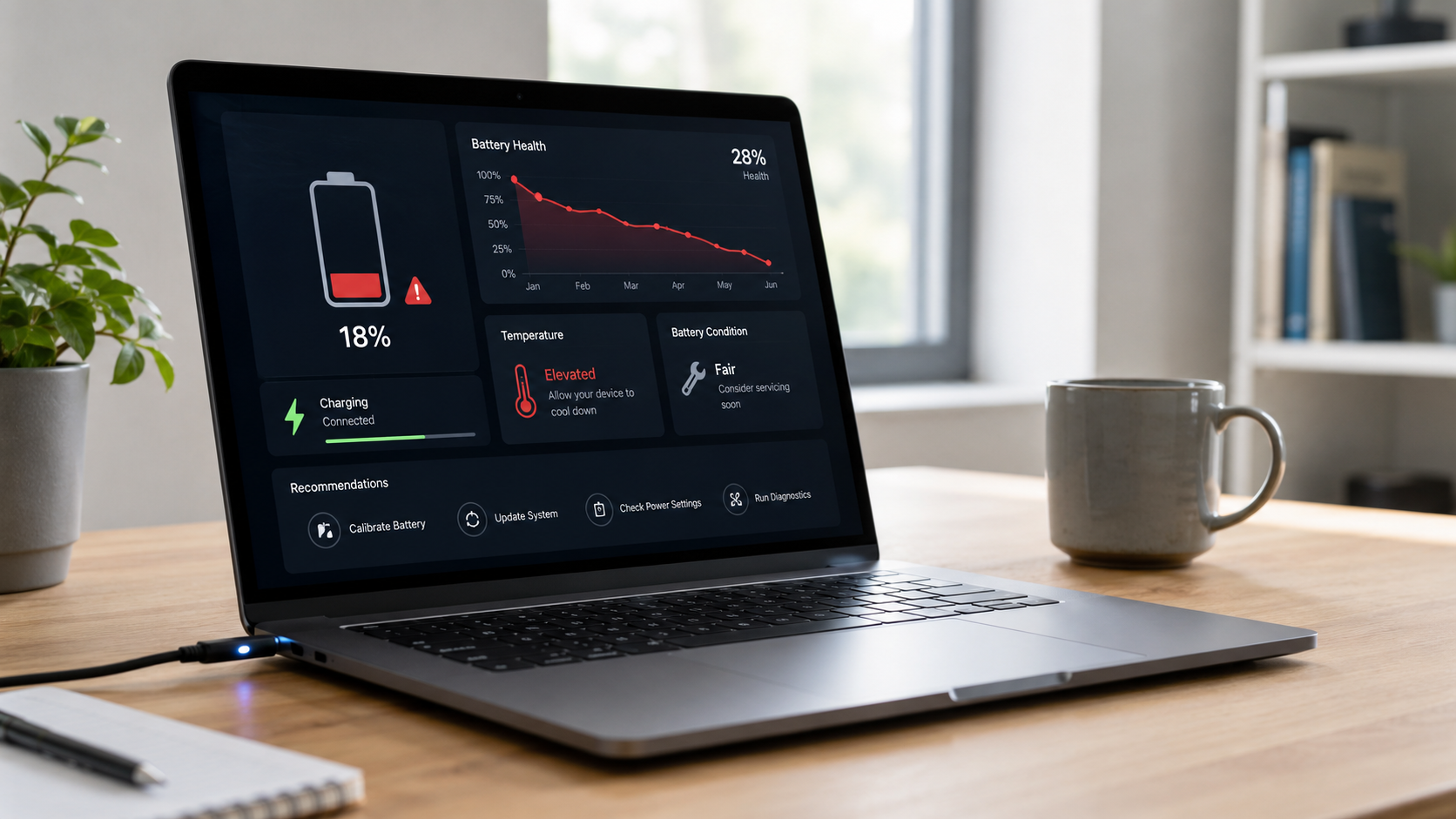

A laptop battery rarely fails all at once. More often, the warning signs appear gradually: shorter runtime, unusual charging behavior, sudden shutdowns, inaccurate battery percentages, or excessive heat. Some problems come from normal lithium-ion battery aging, while others are caused by power settings, charging equipment, software, or an inaccurate battery gauge. The right fix depends on the symptom. Understanding the common laptop battery health problems and fixes can help you avoid unnecessary battery replacements while recognizing the problems that require professional service.
What Laptop Battery Health Actually Means
Battery health is different from the percentage shown beside the battery icon. A laptop showing 100% charge may still have significantly less usable capacity than it had when new.
Lithium-ion batteries gradually lose their ability to store energy as they age and go through charge and discharge cycles. Microsoft notes that battery capacity falls after repeated charging and discharging, while excessive heat can speed up deterioration.
Apple describes the same process in terms of chemical age, which depends on factors such as charging patterns and temperature history.
“All rechargeable batteries are consumable components that become less effective as they chemically age.” — Apple
This means some loss of battery capacity is normal. Troubleshooting becomes important when the loss is unusually severe or the laptop behaves unpredictably.
Common Laptop Battery Problems at a Glance
| Battery problem | Possible cause | First step to try |
|---|---|---|
| Battery drains unusually fast | Battery aging, demanding apps, heat, power settings | Check battery usage and health |
| Battery will not charge | Charger, adapter, port, battery, or hardware problem | Verify charger and run diagnostics |
| Charging stops around 80% | Battery-protection feature may be active | Check optimized/smart charging settings |
| Battery percentage jumps suddenly | Inaccurate gauge or degraded battery | Run battery diagnostics or calibration |
| Laptop shuts down with charge remaining | Weak battery or inaccurate charge reading | Test battery health |
| Laptop works only when plugged in | Severely degraded or failed battery | Run manufacturer diagnostics |
| Battery is swollen | Internal battery failure | Stop using the device immediately |
1. Battery Drains Much Faster Than It Used To
Shorter runtime is the most common sign of battery aging. A laptop that once lasted several hours may eventually require charging much more frequently because its battery can no longer hold its original amount of energy.
Before assuming the battery needs replacement, check whether applications are consuming excessive power. Windows users can review battery usage under Settings > System > Power & battery. Microsoft also provides the built-in powercfg /batteryreport command, which creates an HTML battery report containing information about battery usage and estimated capacity.
What to do
Reduce unnecessary background applications, lower screen brightness when practical, use Windows Energy Saver or the equivalent power-saving mode, and make sure the laptop is not operating at unusually high temperatures.
If runtime remains poor even under light use and the manufacturer’s battery-health test reports significant deterioration, replacement may be more useful than further software troubleshooting. Dell, for example, recommends considering battery replacement when its health status reaches Fair or Poor, when runtime is substantially reduced, or when unexpected shutdowns occur.
2. Laptop Is Plugged In but Not Charging
A “plugged in, not charging” message does not automatically mean that the battery is defective.
First check the basics: confirm that the wall outlet works, inspect the charger and cable for physical damage, and make sure you are using a suitable power adapter for the laptop. Apple warns that an adapter with insufficient wattage can charge a Mac slowly or unreliably.
Windows laptop manufacturers commonly provide built-in or downloadable battery diagnostics. Dell allows users to inspect battery health through BIOS/UEFI and its diagnostic tools, while HP provides Battery Check for identifying charging and battery failures.
If the computer recognizes the charger but never adds charge to the battery, even after diagnostics and a restart, the problem may require battery, charging-port, adapter, or motherboard service.
3. Battery Stops Charging at 80%
Stopping around 80% can look like a fault when it is actually a battery-protection feature.
Modern laptops may deliberately avoid keeping the battery at full charge for long periods. Microsoft recommends using Smart charging when the device supports it, while Apple’s Optimized Battery Charging can delay charging beyond 80% when a Mac predicts that it will remain connected to power for an extended period.
On supported Apple-silicon Macs running macOS Tahoe 26.4 or later, Apple also provides a configurable Charge Limit between 80% and 100%.
Before trying to “fix” an 80% charging limit, check your manufacturer’s battery-care, smart-charging, conservation, or optimized-charging settings.
4. Battery Percentage Is Wrong or Changes Suddenly
A laptop may show 30% remaining and then shut down, or the percentage may jump considerably after charging. Sometimes the battery itself is worn out; in other cases, its charge gauge needs recalibration.
Battery calibration does not restore lost chemical capacity. Its purpose is to improve the accuracy of the displayed charge level. HP specifically describes calibration as resetting the battery gauge so Windows can display the charge level more accurately.
Use your laptop manufacturer’s diagnostic or calibration procedure rather than repeatedly draining a healthy battery to zero. Frequent deep discharges are not recommended as routine battery maintenance; Microsoft advises keeping lithium-ion batteries in a moderate charge range when practical.
5. Laptop Shuts Down Before the Battery Reaches 0%
Unexpected shutdowns can occur when an aging battery can no longer supply power reliably, even though the operating system still reports charge remaining.
Start by generating a battery-health report or running the manufacturer’s hardware diagnostic test. If the laptop repeatedly shuts down on battery power but operates normally from its charger, the battery becomes a strong suspect.
Dell specifically lists unexpected shutdowns while charge remains as one indication that battery replacement should be considered.
If the problem continues after battery diagnostics, operating-system updates, and firmware updates, hardware service may be necessary because power-management components other than the battery can also cause shutdowns.
6. Laptop Works Only While Plugged In
When a laptop switches off immediately after the charger is removed, the battery may no longer be supplying usable power.
Run the manufacturer-provided battery test before buying a replacement. A diagnostic result can help distinguish a worn battery from charging or power-management problems.
On a Mac, the Battery Health section may display Normal or Service Recommended. Apple explains that Service Recommended means the battery holds less charge than it did when new or is not functioning normally.
Cycle count can provide additional context on Mac laptops. Apple states that cycle-count limits vary by model and that batteries are designed to retain up to 80% of their original charge capacity at their specified maximum cycle count.
7. The Battery or Laptop Case Is Swelling
Battery swelling is different from ordinary battery wear and should be treated as a safety issue.
Possible signs include a raised trackpad, separating case panels, a distorted keyboard area, or a visibly enlarged battery.
Microsoft advises immediately stopping use if a battery expands beyond the device enclosure and warns against applying pressure to or puncturing it. Dell likewise advises users not to puncture, compress, disassemble, or continue using a swollen battery.
Do not try to flatten a swollen battery or force the laptop case closed. Disconnect the device from power and follow the manufacturer’s service and battery-disposal guidance.
How to Check Laptop Battery Health
On Windows 11
Open Command Prompt as administrator and enter:
powercfg /batteryreport
Windows creates an HTML report and displays its location. Microsoft recommends reviewing sections including Installed battery, Recent usage, and Battery usage to understand capacity and battery behavior.
Your laptop manufacturer may also provide more specific battery-health information through BIOS/UEFI or a diagnostic application.
On a Mac
Open System Settings > Battery and check Battery Health.
For cycle count, hold the Option key, open the Apple menu, select System Information, choose Power, and look under Battery Information.
Apple recommends relying primarily on the battery-health information reported by macOS rather than treating third-party battery utilities as conclusive.
How to Keep a Laptop Battery Healthy Longer
You cannot stop lithium-ion battery aging, but you can reduce unnecessary stress on the battery.
Microsoft recommends avoiding frequent deep discharge and keeping the battery roughly between 20% and 80% when practical. It also advises avoiding excessive heat because high temperatures accelerate battery deterioration. For long-term storage, Microsoft recommends roughly 40%–60% charge in a cool, dry location.
Useful habits include:
- Enable Smart Charging, Optimized Charging, or your manufacturer’s battery-care mode when available.
- Keep cooling vents unobstructed.
- Avoid leaving the laptop in a hot vehicle or other high-temperature environment.
- Use a compatible charger with sufficient wattage.
- Do not repeatedly drain the battery to zero simply to “train” it.
- Run manufacturer diagnostics if battery behavior changes suddenly.
FAQs
Can laptop battery health be restored?
No software setting can reverse the chemical aging of lithium-ion cells. Calibration may correct an inaccurate battery-percentage reading, but it does not restore lost battery capacity.
Is it bad to keep a laptop plugged in all the time?
Keeping a modern laptop connected to power is not automatically harmful, but prolonged high charge levels combined with heat can contribute to battery aging. Battery-care features such as Smart Charging and Optimized Battery Charging are designed to reduce time spent at a full charge.
Why does my laptop stop charging at 80%?
A battery-protection feature may be limiting or delaying charging. Check Smart Charging, Optimized Battery Charging, Charge Limit, or the equivalent manufacturer setting before assuming the battery is faulty.
How do I know when a laptop battery needs replacing?
Consider replacement when the manufacturer’s health test reports poor condition, battery life has become impractically short, unexpected shutdowns occur, or the battery can no longer power the laptop reliably. A swollen battery should no longer be used.
Should I calibrate my laptop battery regularly?
Not as routine maintenance unless your manufacturer recommends it. Calibration is mainly useful when the battery gauge appears inaccurate or a diagnostic utility specifically requests calibration.
Conclusion
Most common laptop battery health problems and fixes fall into two categories: normal battery aging and correctable charging or power-management issues. Fast battery drain, inaccurate percentages, charging limits, and unexpected shutdowns should be diagnosed before replacing hardware. Use Windows, macOS, BIOS/UEFI, or manufacturer battery tools to check actual battery condition. Good charging habits and lower operating temperatures can slow deterioration, but a severely degraded or swollen battery ultimately requires replacement rather than another software fix.
Read also AI Agents vs Traditional Alternatives: Which Approach Is Better?