
Learning how to use digital privacy safely is important for everyone who uses the internet. Digital privacy means keeping your personal information safe when you use phones, computers, websites, games, and apps.
Your personal information may include your full name, home address, phone number, passwords, photos, school name, location, and private messages. When this information is not protected, strangers or criminals may try to steal or misuse it.
You do not need to be a computer expert to protect yourself. Small and simple actions can make your online life much safer. This guide explains how to use digital privacy safely in a clear way that is easy for both children and adults to understand.
Understand What Personal Information Means
The first step in learning how to use digital privacy safely is understanding what information should remain private.
Personal information includes details that can identify you or help someone find you. Examples include:
- Your full name
- Your birthday
- Your home address
- Your phone number
- Your email address
- Your passwords
- Your live location
- Your school or workplace
- Your banking information
- Private photos and messages
Think carefully before sharing any of these details online. Even a friendly person in a game or chat room may not be who they claim to be.
Before posting something, ask yourself, “Would I be comfortable if a stranger saw this?” If the answer is no, do not share it.
Create Strong and Different Passwords
Strong passwords are an important part of how to use digital privacy safely. A weak password can be easy for another person to guess.
Avoid passwords such as “123456,” “password,” your name, or your birthday. A safer password is long and contains a mix of words, numbers, and symbols.
For example, a password made from several unrelated words is usually stronger than one short word. Do not use the same password for every account. If someone steals one password, they may try it on your other accounts.
A password manager can help create and store strong passwords. Protect the password manager with one strong main password that you can remember.
Never send your passwords through messages or share them with friends. Children should only share account information with a trusted parent or guardian when necessary.
Turn On Two-Step Verification
Two-step verification adds another layer of protection to your account. It is sometimes called two-factor authentication.
After entering your password, you may need to enter a code from an app, text message, security key, or trusted device. This means that a stolen password alone may not be enough to enter your account.
Use two-step verification on your email, social media, cloud storage, shopping, gaming, and financial accounts whenever it is available.
An authentication app or security key can often provide stronger protection than a code sent by text message. However, any form of two-step verification is usually safer than using only a password.
Store backup codes in a secure place. Do not post them online or save them where strangers can easily find them.
Check Privacy Settings on Apps
Apps and websites often collect information about their users. They may ask for access to your camera, microphone, contacts, photos, or location.
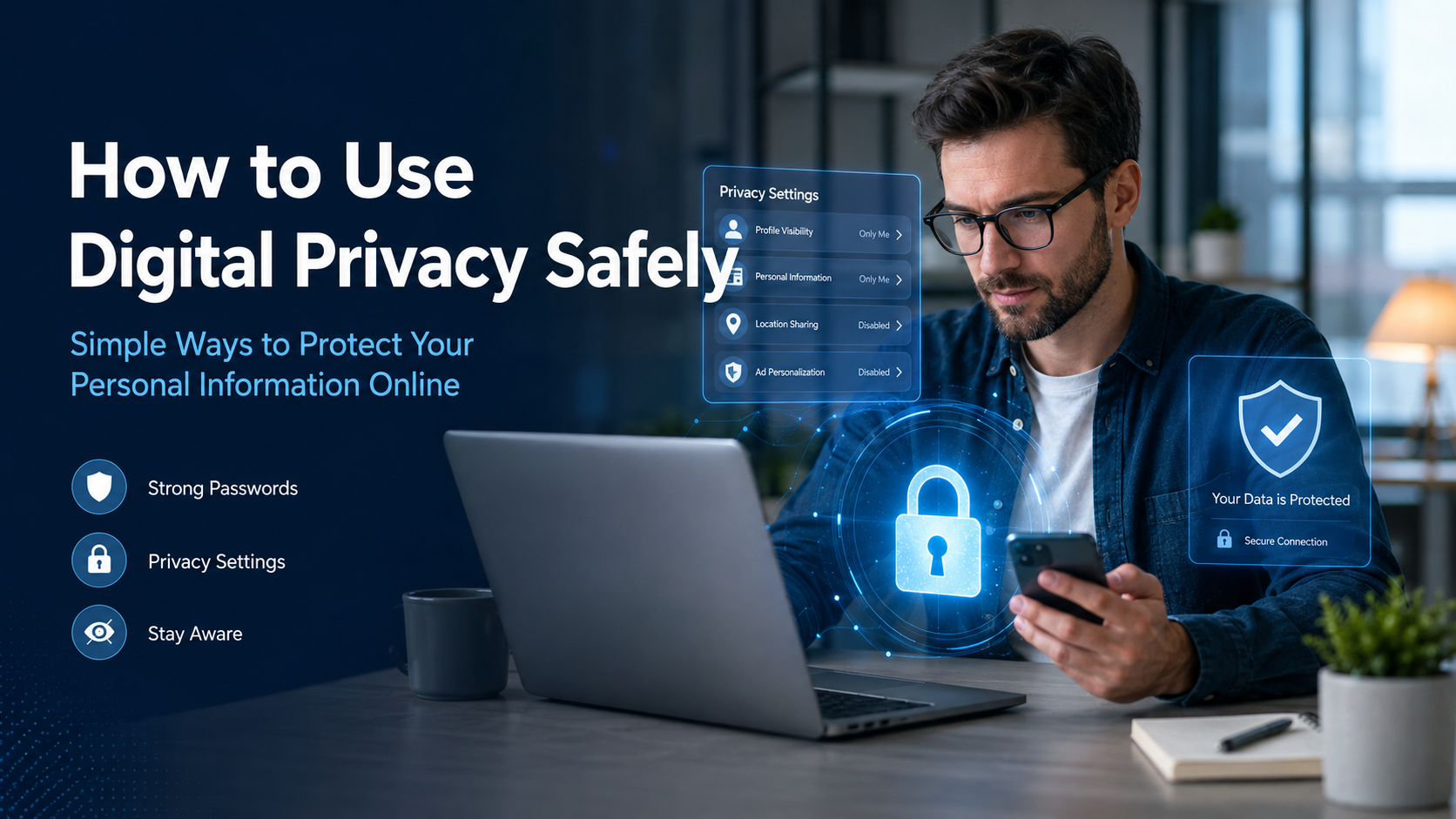
To understand how to use digital privacy safely, check the privacy settings on every important app and account. Turn off permissions that the app does not need.
For example, a calculator app normally does not need access to your contacts or microphone. A map app may need your location while you are using it, but it may not need to follow your location all day.
Also check who can see your profile, posts, photos, friend list, and activity. Choose private settings when possible. Allow only trusted people to view personal content.
Privacy settings may change after an app update, so review them regularly.
Be Careful About Links and Messages
Some people send false messages to steal information. This type of trick is often called phishing.
A phishing message may say that your account has a problem, you have won a prize, or you must act immediately. It may ask you to click a link, enter a password, or provide payment details.
Do not trust a message simply because it uses the name or logo of a real company. Check the sender carefully. Avoid opening unexpected links or attachments.
When a message says there is a problem with your account, open the company’s official app or type its official website address yourself. Do not use the link inside the suspicious message.
Never share passwords, verification codes, or banking details with someone who contacts you unexpectedly.
Keep Your Devices and Apps Updated
Software updates help fix security problems. An old phone, computer, browser, or app may contain weaknesses that attackers can use.
Turn on automatic updates whenever possible. Update your operating system, internet browser, apps, antivirus protection, and home router.
Only download apps from trusted app stores or official websites. Read the app’s permissions before installing it. Remove apps that you no longer use because they may continue collecting information.
Lock your phone, tablet, and computer with a secure password, PIN, fingerprint, or face recognition. Set the screen to lock automatically after a short period of inactivity.
Use Public Wi-Fi Carefully
Free public Wi-Fi can be useful, but it may not always be secure. Other people on the same network may try to watch or steal information.
Avoid entering banking details, shopping information, or important passwords while using unknown public Wi-Fi. Use your mobile data connection for sensitive tasks when possible.
Make sure websites use a secure connection. Most modern browsers show a lock symbol near the website address when the connection is protected. However, the lock symbol does not prove that the website itself is honest, so you must still check the site carefully.
Turn off automatic Wi-Fi connection settings. This prevents your device from joining unknown networks without your permission.
Share Less on Social Media
Posting too much information can make your privacy weaker. A photo may reveal your school, home, street name, daily routine, or current location.
Do not post travel plans before or during a trip. This may tell strangers that your home is empty. Avoid sharing photos that show house numbers, identification cards, tickets, passwords, or private documents.
Turn off location tagging unless you truly need it. Review old posts and remove information that should no longer be public.
Remember that deleting a post may not completely remove it. Someone could have saved, copied, or shared it. The safest choice is to think before posting.
Back Up Important Information Safely
A backup is a protected copy of your important files. Backups help if your device is lost, damaged, stolen, or attacked by harmful software.
Save important photos and documents on a trusted cloud service, an external drive, or both. Protect cloud accounts with strong passwords and two-step verification.
If you use an external drive, disconnect it after making the backup. Store it in a safe place.
Check your backups sometimes to make sure your files can be opened. A backup is only useful when it works properly.
Teach Family Members About Digital Privacy
Digital privacy works best when everyone in a family understands it. Talk openly about safe passwords, private information, suspicious messages, and online strangers.
Children should know that they can speak to a trusted adult if something online makes them feel scared, confused, or uncomfortable. They should never be punished for reporting a possible online trick.
Parents and guardians can check privacy settings together with children. Clear family rules can explain which apps are allowed, what information must remain private, and who children can talk to online.
Learning together makes digital safety easier and less frightening.
Conclusion
Understanding how to use digital privacy safely helps protect your identity, accounts, devices, money, photos, and private conversations. Digital privacy does not require difficult computer skills. It depends mainly on careful choices and simple habits.
Use long and different passwords for every account. Turn on two-step verification. Check app permissions and privacy settings. Keep devices updated, avoid suspicious links, and share less personal information online.
You should also use public Wi-Fi carefully, back up important files, and teach family members how to notice online risks. Before sharing information, stop and think about who may see it and how it could be used.
No online action is completely free from risk, but good privacy habits can greatly reduce danger. The more carefully you protect your information, the more confidently and safely you can use the internet.
Frequently Asked Questions
1. What does digital privacy mean?
Digital privacy means protecting personal information when using the internet, apps, phones, computers, games, and online accounts. It includes controlling who can see your information and how companies or other people may use it.
2. Why is it important to learn how to use digital privacy safely?
It helps protect your identity, passwords, messages, photos, location, accounts, and money. Good privacy habits can also reduce the risk of scams, account theft, and unwanted contact.
3. What information should I never share with strangers online?
Do not share passwords, verification codes, banking information, your home address, private documents, or your live location. Children should also avoid sharing their school name or daily routine with strangers.
4. Is a private social media account completely safe?
No. Private settings reduce who can view your content, but approved followers can still copy or share it. You should only post information that you would be comfortable showing to trusted people.
5. How often should I check my privacy settings?
Check them every few months and after major app updates. You should also review them whenever you install a new app, create a new account, or notice an unexpected change.
Read also: How to Improve Social Media Scams: A Complete Guide to Staying Safe Online